Showing posts with label ALM. Show all posts

Friday, July 31, 2015

Configure Jenkins to start UFT tests from ALM recurrently

Since HP ALM doesn't really allow you to schedule recurrent Test Sets, you can easily install and configure Jenkins to get the job done. I will put the jenkins installation in another post, some other time.

But here is how to schedule a new job:

1. New Item - Freestyle project.
2. Add build step -> Execute HP tests using HP ALM Lab Management

3. Schedule recurrently. If you click on the question mark next to the schedule text, you will see the rules.


4. Optionally you can choose post build actions, like to archive the results:


This will generate a nice test trend graph, if you're into graphs :)


Monday, March 24, 2014

Uninstall ALM-Client

1. Delete all files under following locations:
    %ALLUSERSPROFILE%\HP\ALM-Client
    %UserProfile%\AppData\Local\HP\ALM-Client
    %LocalAppData%\HP\ALM-Client
    %ALLUSERSPROFILE%\Application Data\HP\ALM-Client
    %UserProfile%\Local Settings\Application Data\HP\ALM-Client
    %temp%/td_80

2. Reopen ALM.

Source:
http://h30499.www3.hp.com/t5/Quality-Center-Support-and-News/How-do-I-uninstall-the-ALM-QC-v11-client/td-p/5616791#.UzAebvmSxlT 

Open ALM Client outside IE

If you need to open ALM-Client outside Internet Explorer you can open in IE following link:

http://ServerName/qcbin/start_a.jsp?embedclient=false

This will open ALM-Client.


Thursday, February 13, 2014

QTP / UFT - Object identification using XPath

Did you experience a situation where you had a WeElement that was visible only at mouse over, and UFT would not recognize it even if you pay for that?

Here is something to try:

1. Open site in Chrome browser.
2. Press F12 to see DevTools.
3. Go to the desired element, Right-click on it and select "Inspect Element".
4. The element will bie highlighted in the DevTools zone:
\
5. Copy XPath, and paste somewhere to use it, you should have something like this:

//*[@id="highcharts-0"]/svg

6. Enter the code in UFT. Should be something like:

 Browser("Browser_Local").Page("MyPage").WebElement("xpath:="//*[@id='highcharts-0']/svg"").Click

Hope this helps!

Note: Special thanks to my colleague Mihai, who pointed this out.

Thursday, January 9, 2014

Add Testing Host in ALM

1. Open ALM in Remote Machine.
2. Go to Help -> ALM Tools -> HP ALM Lab Service > Download HP ALM Lab Service for corresponding operating system.
3. Follow the wizard, Install Auto Login:

4. Continue the installation.
5. Enter Server Settings and Host Settings.

6. In ALM, go to Lab Resources -> Testing Hosts -> New Testing Host.
Important! Make sure you set the New Testing Host Name the same as the machine name!

7. Click Register Host.
8. When prompted to start the service host, select Yes -> Finish.
9. Restart machine.
10. In ALM, go to Lab Resources -> Testing Hosts, right click on the new Testing Host and select Check Host.

Tuesday, October 15, 2013

QTP / UFT - Manually unlock test

Pretty useful:

1) Have everyone close their QTP / UFT scripts and log out of the project
2) Log into site admin, expand the project, and select the locks table. If any records appear in the locks table, run the
following SQL query in the text box above the results.
DELETE FROM LOCKS WHERE LK_USER = 'username' AND 
LK_OBJECT_TYPE = 'TEST' 
a. Note: username needs to be replaced with a username in the LK_USER column from the results above.
3) Users should now be able to log back into the project and access the QTP / UFT scripts.

Source:

Wednesday, August 21, 2013

Permissions for creating Business Process Tests and FLows

You need to assign your user account to BPTester group.

Here what you need to do:
1. Open project in QC (ALM).
2. Go to Tools -> Customize -> Groups and Permissions.
Note! This is available only if you are a project administrator.
Note!! This is available only if your ALM is version11.50 or later.

3. Add your user to BPTester Group.

Creating Business Process Test or Flow is supported only starting with ALM 11.50.
If you get this message when trying to create a new Business Process Test or Flow, you probably have an older ALM (like 11.0).


Tuesday, July 16, 2013

UFT - API Testing save test steps results

In UFT you might need to save the results of a step for further use, or see the results in the generated reports.
Here are some useful options:

1. Write to test Output Properties:
CodeActivity<x>.Output.PropertyName = "string property value";

2. Write to test profile:
CodeActivity<x>.Context.TestProfile.SetVariableValue("variable name","variable value");

3. Write to Output Console:
this.CodeActivity<x>.Context.UserLogger.InfoFormat("some string you want to see");

4. Write to generated Report after Run.
this.CodeActivity<x>.Report("some string you want to see");

Wednesday, July 10, 2013

UFT - Return formated Date


I needed to get current date in this specific format: 2013-07-10T10:03:45.285+03:00
then, make it available for future activities, so here is what I did:

1. Created a Custom Code activity "GetTodayDate".

2. Added a Result Output Property.
Name: Result
Type: String

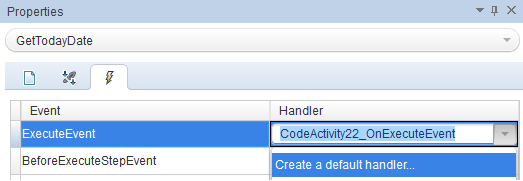
3. Go to Events Tab -> Create a default handler... for ExecuteEvent


4. Add following code:

public void CodeActivity22_OnExecuteEvent(object sender, STActivityBaseEventArgs args)
        {
            string date = XmlConvert.ToString(DateTime.Now,XmlDateTimeSerializationMode.Local);                               
            CodeActivity22.Output.Result = date;
        }

5.  Result:


6. Now I can link the Result and use it in future activities.


Friday, July 5, 2013

UFT - Postgres on Windows via ODBC

For API testing in UFT (HP Unified Functional Testing) you might need to connect to a Postgres database.

1. For this you need to get an ODBC driver for Postgres:
http://www.postgresql.org/ftp/odbc/versions/msi/
2. Install it.
3. Go to %systemdrive%\Windows\SysWoW64 and add the Driver.


4. In UFT go to Data pane -> New Data Source -> Database and add database info.


Wednesday, April 17, 2013

Object Lock error in HP ALM (QC)

If you get an Object Lock error in QC ("Object locked by 'username' ") here are the steps to solve it:

1. Go to Site Administration.
2. Search for the corresponding Project.
3. Find the LOCKS table.
4. Execute following script:
DELETE FROM LOCKS WHERE LK_USER = 'username'